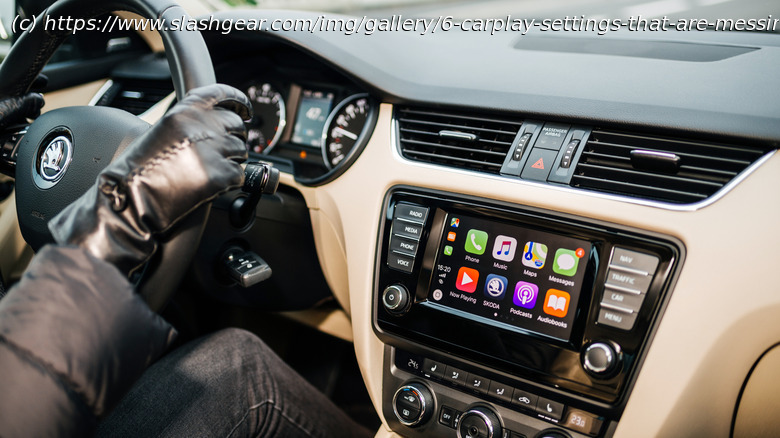
Apple’s CarPlay is meant to make your drive easier, not more fiddly. There are some defaults you can change to make things work smoother for you.
Driving can sometimes be stressful, and Apple’s CarPlay is intended to reduce that stress, rather than add to it. So, if you find that there are niggling annoyances in your CarPlay setup, then it’s time to do something about it. The good news is that CarPlay is really quite customizable once you get into the settings and start turning things on and off. CarPlay was first introduced in 2014, and there have been many tweaks and refinements since then, including Apple’s release of iOS 26 in September 2025, which introduced several new CarPlay features – including the option to add widgets – and even better customization options.
You can’t change everything, however, and in many cases that’s deliberate. Apple avoids letting you do anything in CarPlay that might be considered dangerous, like having bright lights inside the car when it’s dark outside, or playing videos while the car is in motion. The settings we suggest changing aren’t necessarily bad features, but different drivers have different requirements. What works for one person — like Siri interrupting your carefully curated drivetime playlist to tell you something — might be a total nightmare for someone else. Some settings can be changed directly on your CarPlay screen, but others need to be accessed via your iPhone. We’ll cover both types here and let you know what needs to be accessed where. Allowing phone calls and text messages to distract you
One of the most important parts of road safety is not getting distracted when driving. Hooking your car up to everything that’s going on on your iPhone can be very distracting indeed. This is why Apple has included a Driving Focus setting in iOS 15 and later, which prevents you being bombarded with text messages and phone calls when you’re driving.
To set up Driving Focus, go to Settings on your iPhone, tap Focus, and select Driving Focus. Select the Activate With CarPlay option so it will start working as soon as your iPhone is connected to CarPlay. You can opt to receive no messages at all or choose a limited number of contacts who can still contact you. Alternatively, you can choose to receive messages from everyone apart from some nominated contacts.
There’s also the option to allow repeated calls. This means if someone phones you twice within a few minutes, the call will go through, in case someone is trying to get hold of you in an emergency. You can also set up an automatic message to respond to texts when you’re using Driving Focus, so you can tell them that you’re driving and you’ll look at their message later. This can be overridden if the other person types « urgent ».Using default appearance settings when these aren’t the best option for you
Default options exist because CarPlay has to do something right out the box. But that shouldn’t mean you’re wedded to those options forever. For the best experience, you want your appearance settings to make things clear and easy to use.