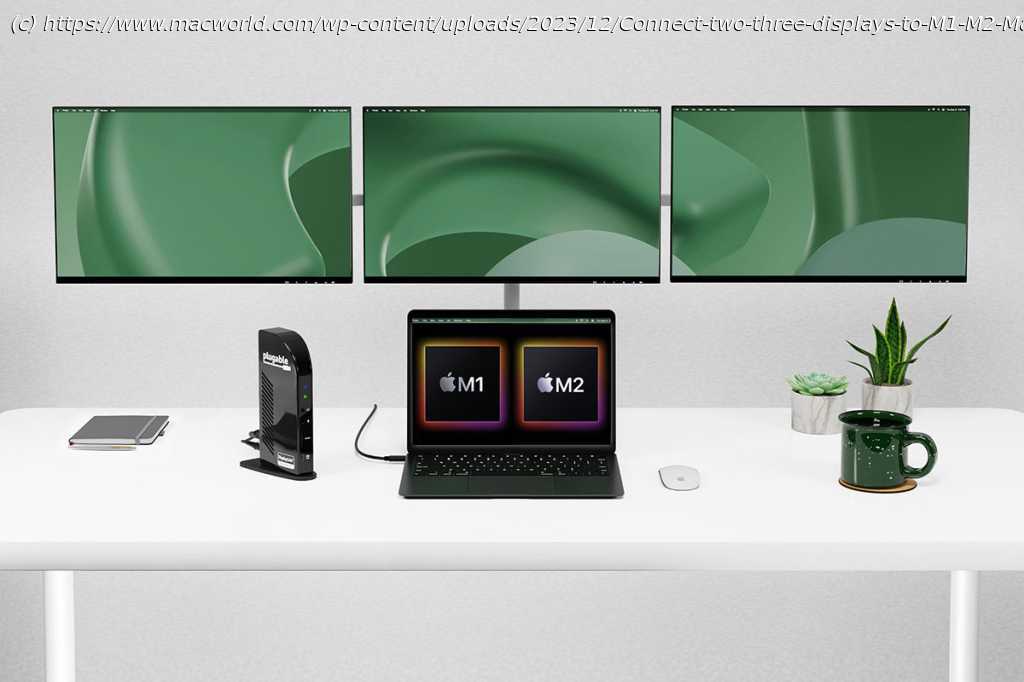
Get around Apple’s annoying M1/M2/M3 Mac single-display limitation via software and adapters
While the higher-end MacBooks with M1/M2/M3 Pro and Max chips support multiple external displays, Apple’s lower-end range of MacBooks that use a standard M1, M2 or M3 processor cannot natively connect more than one external monitor. This is a massive limitation compared to the previous Intel-based generation of Mac laptops that could run two displays when connected to a USB-C or Thunderbolt 3 docking station or hub that we hope will be rectified with the M3.
Later, we list our tested and recommended software and hardware solutions for adding more than one display to the plain M1, M2 and M3 Macs.
Here are the external display specs for Apple’s current laptops:
M1 MacBook Air: Maximum one external display
M2 MacBook Air: Maximum one external display
M2 MacBook Pro: Maximum one external display
M2 Pro MacBook Pro: Maximum two external displays
M2 Max MacBook Pro: Maximum four external displays
M3 MacBook Pro: Maximum one external display
M3 Pro MacBook Pro: Maximum two external displays
M3 Max MacBook Pro: Maximum four external displays
However, there are ways around this plain M1/M2/M3 limitation, allowing you to run two or more external displays off your MacBook, which we will outline here. In each case, there’s a software download and a docking station, hub, or adapter required.
The simplest solution is to get a USB graphics-enabled docking station or hub—and we’ve reviewed the best ones in this article. USB graphics is a software-based technology that compresses the video signals from the computer to the monitor, enabling you to connect multiple external displays to your M1, M2 or M3 MacBook.
Installing third-party software drivers leads to a slight risk that these might later be unsupported by future updates of the macOS, but the two drivers we recommend are recognized industry standards that we think will continue to be supported. External displays: Big problem for M1 and M2 Macs
Apple’s Mac mini, MacBook Air, and 13-inch MacBook Pro were the first Macs to feature the Apple-designed M1 processor (CPU). They received rave reviews for their speed improvements over Intel-based laptops, including here on Macworld.
But if your MacBook setup includes running more than one external display, you have a major problem. Apple’s M1, M2 or M3 chips simply won’t allow it—at least natively. Apple states in the M1, M2 or M3 MacBook Air and MacBook Pro tech specs that they support only “one external display with up to 6K resolution at 60Hz”.
While the M1, M2 or M3 MacBooks natively support just one monitor, the M1 and M2 Mac Mini does natively support up to two external monitors—one via the HDMI port and a second via USB-C. But the M1 models of the MacBook Air and MacBook Pro lack an HDMI port and only support a single external display over Thunderbolt.
Apple doesn’t look like it will solve this problem for you—it would prefer you buy one of its more expensive laptops! We have this guide to monitors for M1 Macs and what you need to know before buying. We also cover the basics of how to connect your Mac to an external monitor. Workaround #1: Install DisplayLink software drivers
You can use a combination of display technologies to get around the M1/M2/M3 MacBooks’ single-monitor limitation. This should work with most third-party docks, although some manufacturers, such as Caldigit, don’t recommend it.
A whole new category of docks—many reviewed below—has appeared to solve the M1/M2/M3 Mac one-screen problem. DisplayLink USB-C docks or just USB-C docks require software drivers to enable data compression that make them almost as powerful as a Thunderbolt dock. You’ll need to download the appropriate DisplayLink software from the dock manufacturer—full instructions later on.
Many multi-display docks use a combination of native USB-C Alternate Mode (native “Alt Mode” video output) and DisplayLink technology. This combination serves as a workaround to the M1/M2/M3 platform supporting only a single external display via USB-C.
Note that DisplayLink requires a third-party driver to be installed on the Mac. There are different versions of the DisplayLink driver, and some bring their own compromises to the party. But, in general, setup is straightforward. Some of the docks we review below offer the DisplayLink software when you first connect the dock to your Mac.
The DisplayLink macOS app or DisplayLink Manager app are ways of enabling DisplayLink technology on macOS. The app is available as a standalone installer rather than through the mac App Store.
1. First, download the latest Mac DisplayLink driver. As stated above, some docks, do this for you but it’s always best to use the latest version.
DisplayLink Manager Graphics Connectivity App v. 1.8.1 is compatible with macOS Big Sur 11, Monterey 12 and Ventura 13. It can be managed via the DisplayLink icon in the Apple Menu bar.
The macOS requires the user to permit “Screen Recording” in order for DisplayLink devices to work properly. This can be found in System Preferences under Privacy in Security & Privacy; navigate to Screen Recording in the list on the left, then tick the Screen Recording permission for DisplayLink Manager after unlocking the padlock using your admin password. You may need to quit and restart DisplayLink Manager afterward.
Installation is straightforward. Older versions did not support laptops’ closed-display/Clamshell mode, but 1.8.1 does support Clamshell mode if the MacBook is Intel-based running macOS 12 or if the MacBook is M1-based running macOS 11 or later.
The most scary bit is when you need to enable “Screen Recording” to allow the DisplayLink Manager app to capture pixels and send them to your USB peripheral. This entails making some adjustments in the Mac’s “Privacy” tab, but you are walked through it step by step. Take a look at the instructions here.
There’s an option in DisplayLink manager to “launch at startup”, or you can drag the DisplayLink Manager to your Login Items in Users & Groups.
2. Then connect the MacBook to a docking station.
3. For the first screen you can connect via the dock’s DisplayPort or HDMI Port, and this will be handled natively by the M1/M2 MacBook.
You could also connect the first external display via the dock’s other display ports or via a Thunderbolt or USB-C to HDMI or DisplayPort adapter.
The HDMI or DisplayPort output uses Alternate Mode (Alt Mode), and as it is basically a pipeline directly to the system’s native GPU, it will behave just like if you hooked up a USB-C to HDMI dongle to your laptop. This requires no user driver installation.
The second and third displays will rely on the DisplayLink software. DisplayLink uses an installed driver and the system CPU and GPU to convert graphics data on the system into data packets. That data is then sent over the cable as data packets and converted back to video information and output to the monitors via the DisplayLink chip in the docking station.Workaround #2: Install InstantView software
Another third-party software solution is SiliconMotion’s InstantView, which operates in a similar way to DisplayLink and works with three of the hardware hubs and adapters we review below.
The initial setup is easier than DisplayLink with the hubs from Hyper but similar to the Satechi hub—but it suffers the same challenge that Apple’s software updates can disable it, which will entail installing a newer version and allowing the necessary security & privacy settings for screen recording, just as with DisplayLink.
You can download the latest version of InstantView software here.
Neither software solution is complicated and both worked well in our tests as you can read below.Which docks support DisplayLink and InstantView?
Originally, dock manufacturers did not officially support such a DisplayLink setup for Macs. The solution works, but they rightly warned that this could become unstuck in future versions of the macOS. Whenever there is a new OS update the drivers may need to be updated each time.
However, after some recent testing and improvements Plugable, for example, has updated its compatibility to officially support that configuration. For Mac compatibility, it has validated both Apple and Intel platforms running at least macOS 11. Which dock is best?
A docking station connects to your MacBook via Thunderbolt or USB-C. It then offers multiple ports that your laptop now has access to. These can include new display ports, such as HDMI, as well as Gigabit Ethernet for wired Internet access, USB-C/Thunderbolt/USB-A ports at varying speeds, audio plugs, and card readers.
Learn more about the best Thunderbolt docking stations for more details, or you can connect via a simpler USB-C hub. Look for a dock with two or more display ports, preferably ones that can connect to your preferred displays without the need for an adapter.
Thunderbolt 4 docks or hubs often have no dedicated display port but three available TB4 ports that can be used to connect directly to a USB-C display or via adapters to HDMI or DisplayPort monitors. While you may have to buy an adapter cable, 40Gbps Thunderbolt 4’s port flexibility and backward compatibility are recommended for users of modern Macs such as the M1 and M2 MacBooks.
USB-C docks and hubs are usually cheaper, though.
Docking station and hub manufacturers are now actively marketing their products as solutions to the M1/M2/M3 external display limitation. Each requires either the DisplayLink download or another similar software solution, such as InstantView, but no further hardware adapter except for the dock or hub itself. And of course, these hubs offer the usual multi-port benefits as well as the external monitor solution.
If your hub or dock has just one display port, you could also attach a second or third display via one or more of the spare USB ports, using an adapter such as StarTech.com USB 3.0 to Dual HDMI Adapter. This costs around $60 or £50, so needs to be factored in when pricing an M1/M2 MacBook purchase if you require multiple monitors and want to use the USB-A port rather than a video port such as HDMI or DisplayPort.