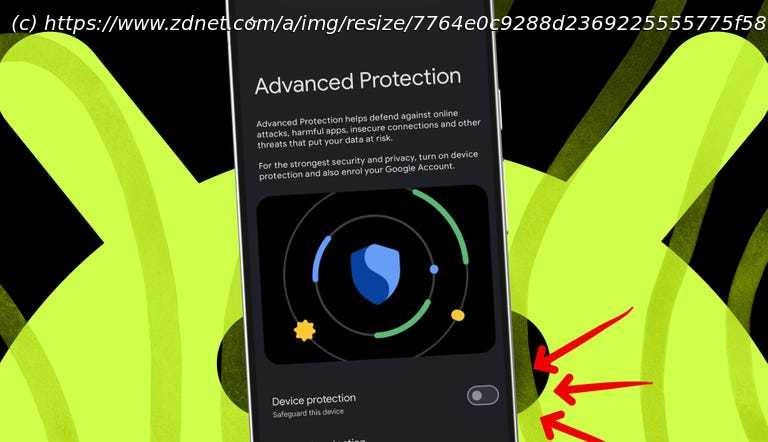
One of Google’s most critical features is hidden behind a single toggle – turn it on to protect against theft, scams, spam, and more.
Advanced Protection locks key Android 16 security settings.
Blocks sideloading, spam, unsafe links, and insecure networks.
Not on by default. You must enable it in settings.
Google’s earlier-than-expected release of Android 16 had a few important features missing at launch, but it did roll out with hardened security settings you shouldn’t ignore.
To this day, arguably the most important change is Advanced Protection. It’s a one-tap mode that enables Google’s strongest security and privacy features. Instead of hunting through many menus to secure your phone, you now have a quick way to lock down your device and better protect yourself against theft, unsafe apps, insecure networks, scams, and spam.
It’s like Google’s version of Apple’s Lockdown Mode. But it isn’t turned on by default, since it enforces stricter safeguards that can occasionally cause friction. While there may be some trade-offs, Advanced Protection is for those who care about security and want to keep their phone ultra protected. How to enable Advanced Protection
What you’ll need: Advanced Protection requires Android 16, so first make sure your device is up to date. Go to Settings > System > Software update (or System update on some devices), and then follow the prompts to install any updates.