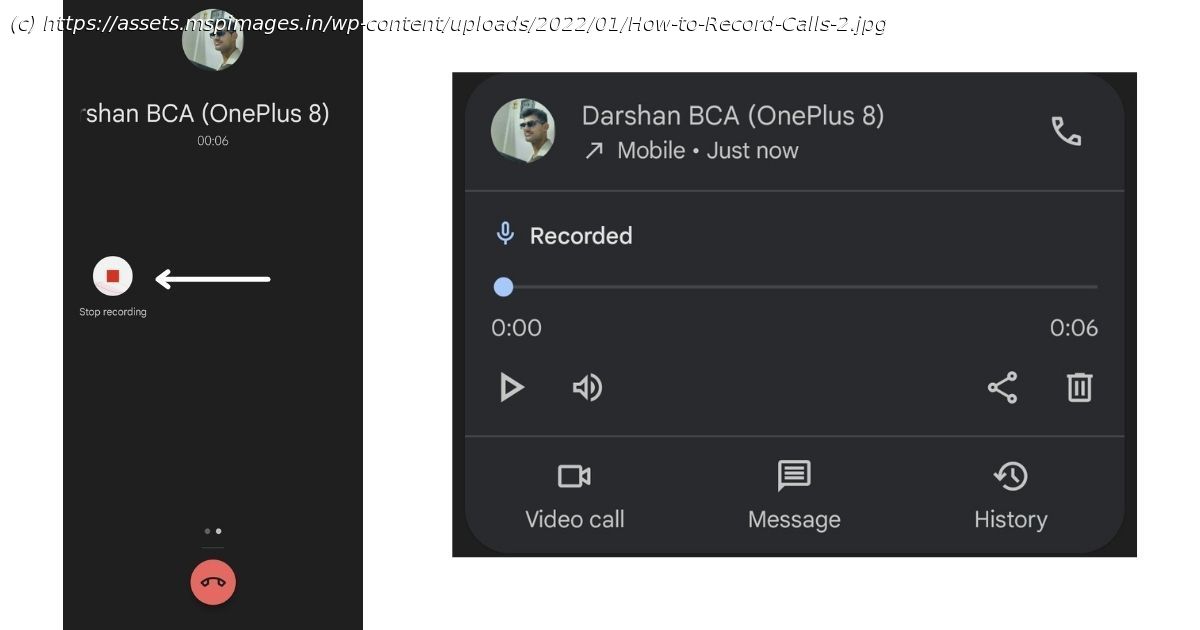
On all Android phones, you can enable call recordings by default to record all your calls. Here is the easiest way to do so, with built-in call recorder.
A smartphone is called a “smart” phone because of the smart features it offers to the users. One such feature is the ability to record and store call recordings. Back when smartphones came out, we had to root the phone to record calls or even install a third-party app to record calls. Now that Android has evolved, most manufacturers have baked the feature into the phones itself. With many smartphone manufacturers using Google’s Phone app as their default Phone app as well, call recording on most of these phones are similar to use and enable. In India, the call recording feature is available to all users, however, if you are using this feature to record calls, the Phone app will make an announcement that the call is being recorded for both parties, as recording without consent is illegal in some countries. On some phones like the Samsung Galaxy series, call recording is not possible while using VoWiFi, which is a call happening over Wi-Fi. Call recording can be used for both incoming and outgoing calls. In this guide, we will take a look at how to record calls on OnePlus, Samsung, Vivo, OPPO, Realme and Xiaomi Android phones. Also Read: How to Hide Apps in Samsung, Vivo, OPPO, Realme and Xiaomi Android Mobile Phones? Note: The same steps can be used for an incoming call as well. You can open the phone app > Settings > Call recordings and on this screen. Here you can delete all call recordings and also select call recordings for numbers that are not in your contacts or you can manually select contacts with whom you want to record calls automatically. Also Read: How to Take Screenshot on Android Mobiles: OnePlus, Samsung, Vivo, OPPO, Realme, Xiaomi, Redmi On Samsung Galaxy phones, you can automatically record calls for all calls, call recordings for only unsaved contacts, and call recordings for specific contacts. This option can be found under Phone > Tap on three dots > Settings > Record calls > Auto record calls. To view the call recordings, you can head to Phone > Tap on three dots > Settings > Record calls > Recorded calls > A list of phone call recordings will appear. Also Read: Screen Record on iPhone: How to Use Screen Recording Feature on Apple iPhone Note: The same steps can be used for an incoming call as well. Inside the phone setting app, you can enable automatic call recording for non-saved contacts or select a list of contacts with whom you want to start call recording automatically. Also Read: How to Record Calls on an iPhone: 3 Tested Methods You can playback, share or delete the recording after the call ends. To explore more options, you can head to phone apps’ settings > Call recordings and on this screen. Here you can delete all call recordings and also select call recordings for numbers that are not in your contacts or you can manually select contacts with whom you want to record calls automatically. Also Read: Zoom Meet Recording: How to Record a Zoom Meeting on PC and Mobile Since Oppo also uses the Google Phone app these days, the steps are as follows: If your Oppo phone is using Oppo’s dialer, you can follow the below-mentioned steps to enable the call recording option. Additionally, you can also record calls automatically for all unknown numbers and also record calls from specific phone numbers. Since Vivo uses its own app for calls, it is rather straightforward with most of the new phones. If the option is not enabled by default on your Vivo phone, you can go to the phone’s Settings > Phone > Applications > Phone > Record Settings > Enable Call Recording as per your requirement. Also Read: Google Meet: How to Record Google Meet Video Call with Audio as a Participant in Laptop and Phone Since Motorola is a stock Android phone, it also uses Google’s dialer app as the default phone app. Here is how you can record calls on Motorola phones. These were the steps to enable and make use of the call recording feature on different Android phones. The recordings will come in handy to track back your conversations and see if you’ve missed something. In case your phone does not have a built-in call recorder, you can make use of the Truecaller app to record calls. Thanks for reading till the end of this article. For more such informative and exclusive tech content, like our Facebook page