Whatever the reason you need to plug your Android into your computer, here’s how to address if it’s not connecting.
There are fewer reasons that would really require you to hook your Android phone up to your computer, but that doesn’t mean that they don’t exist. Maybe you have a personal music collection that you want to move over to your phone for local playback. Perhaps you want to root your phone so you can install a custom version of Android on it. Or you might be a fan of doing manual, local backups of your phone, whether isolated to specific types of data or imaging the whole device. Regardless of the reason, it’s worth knowing how to do, and the process can get frustrating if your computer won’t recognize that the phone is plugged into it.
With that in mind, if you’re inclined to plug your Android phone into your computer and are having issues with it detecting the handset, then there are a few options that help deal with the most likely causes.Switch your phone into File Transfer or MTP mode
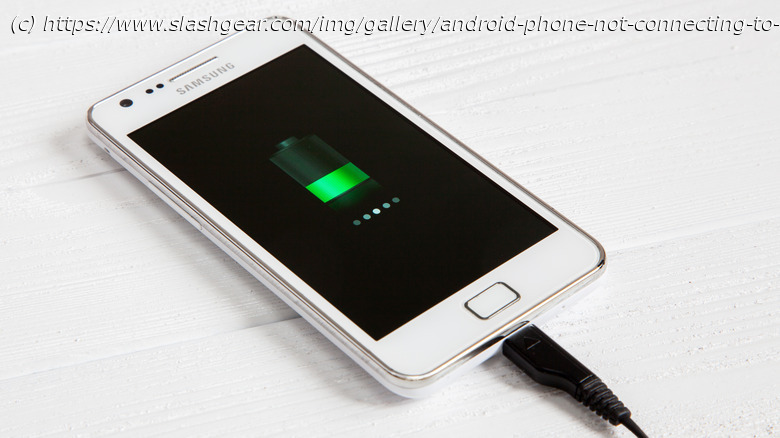
By default, for security reasons, your phone is unlikely to simply let you transfer files the first time you plug it into your computer. Instead, it’s probably going to connect in “charging mode” and require you to change some settings. (Quick caveat: This all applies to PC users. Mac users need to download Android File Transfer from the official Android website to be able to do this.) The steps here are pretty simple, though:
However, this resets each time you unplug your phone from the computer. If you want to change the default setting, it requires turning on the hidden “Developer options” menu in settings. To do this, you need to search settings for “build number,” navigate to the menu that contains the build number information, and tap the build number seven times. That will pull up the developer menu. Scroll down until you find an option titled “Default USB configuration.” Once there, you choose the option that says “MTP” or something like “File Transfer” or “Transferring Files.