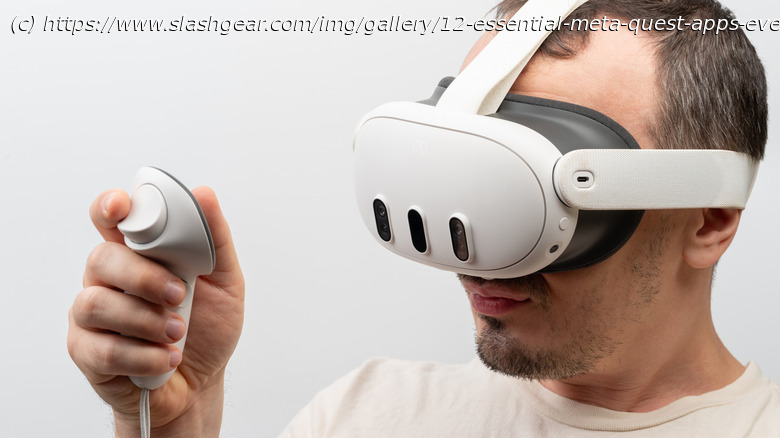
These 12 Meta Quest apps show how your headset can go beyond gaming, offering smart tools that make everyday tasks feel fresh and surprisingly useful.
For years, VR looked like the promise of a new virtual future straight out of a cyberpunk novel. The current reality isn’t so encouraging. Over half of game developers feel VR has stagnated, and sales of Meta Quest headsets are in a death spiral; don’t even ask about the Apple Vision Pro’s great but purpose-lacking tech, which people cared so little about that Apple seems to have ceased production. It’s a shame, because in several respects, VR is the best it’s ever been. The Meta Quest 3S makes VR incredibly affordable compared to its $500 elder sibling, the Meta Quest 3. Newcomers to the niche will find a backlog of incredible games like « Half-Life: Alyx », and plenty of Meta Quest hidden features that can change how they use their headsets. While the VR world is somewhat limited in terms of things to do, what’s available is pretty cool. Today, we’re taking a look at the apps that make the most of VR and mixed reality.
Instead of games, we’re focusing more on the utility and productivity side of the Meta Quest — ways it can do some everyday things in its own unique way, hopefully changing the way you do them completely. We’ve discussed previously how much a mixed reality headset can replace your desktop PC, so think of this as an addendum: real examples of applications that expand your headset’s versatility. We’ll stick with 12 to keep it simple, but we’ll offer alternatives where possible.Virtual Desktop
One of the coolest things you can do with a VR headset is use it to give yourself an array of huge computer monitors that you either don’t have (or can’t afford) in real life. The Meta Quest does natively support streaming your computer’s screens, but there are other apps that might do it better for you. An easy-to-recommend option with high reviews is Virtual Desktop for $24.99. Out of the box, it supports modern Windows and macOS, multiple monitors, Bluetooth peripherals, microphone passthrough, and much more. The virtual office environments can make you feel like you’re sitting first class in an airplane, in an office with a skyline view, or a theater. Basically, this aims to be the primary way you use your virtual desktop, period.
Of course, $24.99 will be a bit pricey for some. Another highly rated (and free) alternative is Immersed. Aside from support for a multiple monitor setup, Immersed also supports creating a virtual office with other coworkers who have their own headset. If you have a USB capture card and you want to plug your headset directly into an HDMI or DisplayPort device — for ultimate low latency and high resolution — then you can try Meta Quest HDMI Link. Windows App is another option, catering specifically to Windows users and acting sort of like an extension of your Windows 11 PC into the virtual world.Spacial Phone
The Meta Quest does have an incredibly good passthrough mode, but it doesn’t come without limitations. One of the most glaring is how terrible screens — particularly small phone screens — look. Plus, it’s not at all convenient to have to take the headset off to unlock your phone with biometric Face ID, or to type in the passcode through grainy passthrough, and doing so can exacerbate motion sickness when using VR, anyway. Spacial Phone ($8.99) aims to solve that. To get around passthrough, Spacial Phone mirrors your phone’s screen into the virtual world so you can see (and control) it better.
The app makes your phone screen look like a native Meta Quest window, which you can drag around and place according to your preference. It even supports horizontal orientation. Android users can control their phone through the app without having to touch the physical screen. iPhone users can mirror the screen as a virtual reality window, but sadly, they still have to control it via the physical screen due to Apple’s API restrictions.
Users will first need to install the companion app, give permissions, and pair the phone with a 10-digit pairing code, and then voilà. Once Spacial Phone gets running, it does work quite smoothly. The negative reviews point out some jank in terms of usability: You can’t let your phone go to sleep, and there are random instances of freezing or the back button being a little too aggressive and quitting the app. That said, it appears the developer is very active — the addition of iPhone support, for example, came very recently.Wolvic
The built-in Meta Quest browser will get the job done for most people, but it’s not the most feature-rich or versatile option in the world. It only recently got support for browser extensions, to emphasize that point. For a browser that’s open-source and more amenable to user customization, look no further than Wolvic. If the lupine name makes you think of Mozilla Firefox’s fox mascot, that’s not an accident; Mozilla was developing a Meta Quest-specific Firefox Reality browser but ended support in 2022 and handed the reins to Igalia, which rebranded it as Wolvic.
For all intents and purposes, Wolvic is basically Firefox in the VR realm. It uses Firefox’s GeckoView, syncs to your Firefox account, and even supports features like sending tabs. To be clear, Wolvic is still deep in the weeds of development, but it offers an extensive amount of customization in the settings, much of which would be familiar to a desktop user: changing your search engine, choosing tab behavior, blocking pop-up windows, and so on. Privacy-oriented users who want to, say, block trackers and aggressively control site permissions will feel right at home with Wolvic.
Wolvic makes it clear that its main focus is on maximizing the use of VR (or XR, broadly speaking) for a browsing experience that has always been limited to two dimensions.