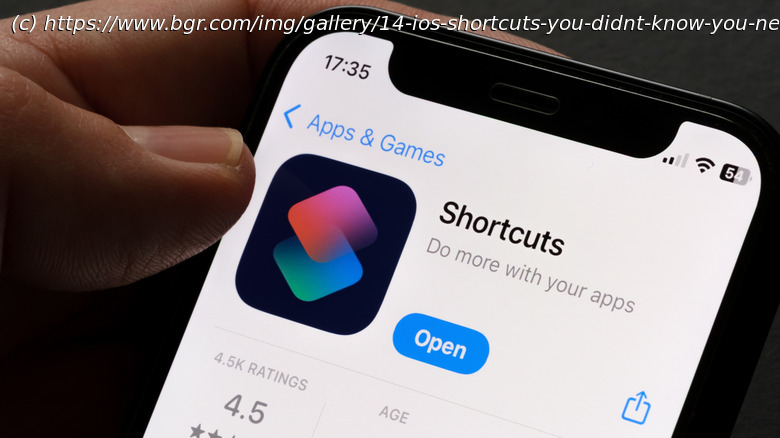
These shortcuts streamline minor annoyances that come from handling repetitive work manually, and can save a surprising amount of time.
Many users of Apple devices fall into a routine and use them the exact same way every day, never caring to explore the lesser-known iPhone tricks. However, every now and then, we come across a feature on our devices that makes us wonder how long it’s been there, and iOS Shortcuts are a perfect example. They offer helpful automations that most users don’t even realize they need in their daily lives. What makes iOS Shortcuts worth exploring is the small conveniences they bring to everyday tasks, like using a shortcut to capture ideas before you forget them.
Most of these shortcuts streamline minor annoyances that come from handling repetitive work manually. They can save a surprising amount of time. Apple offers a built-in gallery of shortcuts, but many are simple and only offer basic automation. Thankfully, the iOS community is incredibly active with automation enthusiasts who create unique shortcuts. We’ve handpicked a selection of the most useful ones for this list. To begin with, the first shortcut solves a problem most of us face.Brainsaver
We have all been there in a situation where we wanted to use Instagram or any other social media app only for a couple of minutes, but suddenly an hour has disappeared from our day. To help with this, there is a shortcut called Brainsaver that keeps your scrolling in check. It automatically forces you out of apps you usually doomscroll on. Using this shortcut can give you a bit of control over your screen time. To get started, you can select which apps you want it to work on and set your preferred time limit for scrolling.
If your Focus mode is set to Sleep, the shortcut sends you a notification with custom text you can edit in the shortcut settings. Then, it immediately takes you back to the home screen. During other Focus modes, the shortcut allows you only your preferred time limit for scrolling. When that timer ends, it will interrupt you by closing the app. After you try this shortcut, you will realize how often your attention shifts away while checking your phone. It’s especially useful when you pick up your device for a specific task and end up scrolling through a feed instead.Save Parking Spot
At times, it can be quite frustrating to find the car when you park it somewhere in a rush and don’t have time to memorize the location. Thankfully, the Save Parking Spot shortcut can help us deal with this specific issue. It logs your car’s location as soon as you disconnect from your car’s Bluetooth or Apple CarPlay. After this, the shortcut also sends you a notification with a map link. To get it working, you need to edit the home address field inside the shortcut.
Then, the shortcut won’t bother you with unnecessary notifications when you’re parking in your own driveway or garage. It can be especially helpful on days when you park your car in an unusual spot or head straight into work and forget to look around. Overall, this shortcut takes a small but annoying problem off your plate. When your day is already packed, having something this simple takes a bit of the burden off you.iOS-ShareEasy
Transferring anything from an iPhone to a Windows device often feels like trying to solve a Rubik’s Cube in the dark. It is difficult compared to the simplicity of using AirDrop, especially with Apple’s recent push to make it more private in iOS 26.2. The iOS-ShareEasy shortcut can make this process easier by providing a similar convenience to Windows users. It can let you send your clipboard, photos, videos, or documents directly from your iPhone to your Windows device. Even more convenient is that the shortcut transfers files over your local network without relying on any other services. Getting it to work only takes a few simple steps. First, you need to install the open-source Windows server from GitHub.
After installing it, add the shortcut to your device, and replace the default URL with the one displayed on your PC by finding the « Text » variable at the beginning of the shortcut settings. You can even assign the shortcut to your Action Button, which has some great uses on the iPhone. Additionally, it appears in the share menu so that you can easily transfer files from there as well. The only concern is that this shortcut relies on your PC’s IP address. For instance, if that changes, you’ll need to update the URL in the shortcut settings every time it does. Thankfully, you can avoid this by assigning your PC a static IP address in your router settings. Expense Manager
It’s easy to lose track of money when we don’t give much attention to where we’re spending it. We all tell ourselves that we’ll start tracking expenses properly. However, the motivation instantly disappears after opening a spreadsheet. An easier alternative is the Expense Manager shortcut, which provides a tracking system inside the Notes app. From a usability standpoint, it’s relatively easy, not requiring you to switch between different apps or deal with complex templates. Each new expense you create becomes a dedicated note, and every cost you add follows the same pattern.
You only need to write the name of the item, add the « = » sign, and type the amount, because the shortcut uses that format to calculate totals and averages. Furthermore, you can organize multiple expenses into folders, such as one for personal expenses and another for savings. The shortcut also allows you to share expenses with your contacts. Thanks to its integration with Notes, everything is easy to edit and update.