With a few quick adjustments, you can easily enhance your experience across gaming, streaming, and even online security.
Few quick changes can help your PS5 run more efficiently and last longer.
You’ll notice smoother visuals and sharper colors across games.
Built-in privacy controls give you more protection while you’re online.
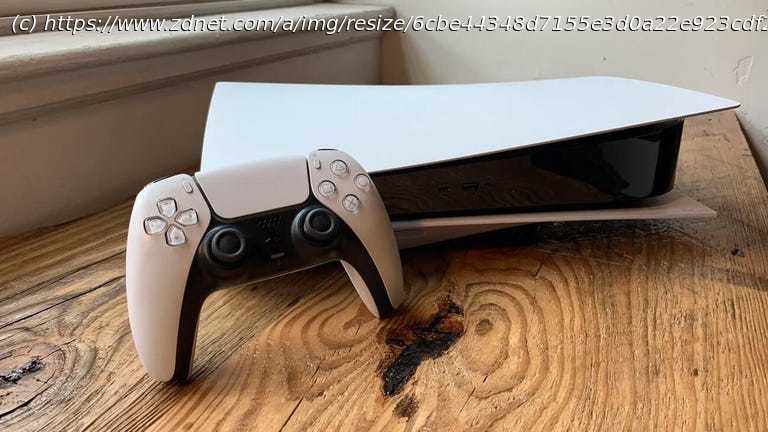
I consider myself a casual gamer at best, but I love my PlayStation 5. It’s my primary entertainment hub, where I can bypass the ad-laden cable subscription (insidiously built into my apartment’s rent) and watch streaming platforms instead. And the PS5 supports some of the most talked-about video games in the industry.
The PS5 comes with sophisticated default settings, yet not every one of them is necessarily ideal for your purposes or best use. So, whether you’re gaming or watching media on your PlayStation console, here are some things to consider, along with detailed steps to make things run more smoothly and safely. 1. Conserving your DualSense controller’s battery life
A common complaint among users is that the PS5’s DualSense controller doesn’t hold a charge very long when unplugged. However, you can make several changes to extend its wireless functionality.
In Settings (the gear icon in the upper right corner), go to Accessories > Controller (General) > Controller Indicators Brightness and change the setting to Dim.
Thenfind Trigger Effect Intensity as well as Vibration Intensity and switch them from Standard to Weak. (If you’re ok with having no haptic feedback at all, you can turn both these settings entirely Off.)
Toward the bottom of the menu, you’ll see Controller Speaker. Adjust the slider bar to the left for minimal output. You can also access this through Sound > Volume.