I had to go through a lot of trial and error though
Ever since I got my hands on the Raspberry Pi 5 (8GB), I’ve built all sorts of cool and wacky projects with the Single-Board Computer, ranging from a simple file-sharing server and a DIY Chromebook to a hardcore Kubernetes workstation and a Home Assistant node. And unless I go overboard with my experiments, the RPi 5 can handle them like a champ.
That said, I’ve also encountered projects where even the newest member of the Raspberry Pi family buckles under the excess processing load. Attempting to emulate PlayStation 3 games on the SBC was a complete nightmare, while running anything besides the lightest 2D Steam games would reduce it to a stuttering wreck.
And then there’s good ol’ Windows 11, an operating system that the Raspberry Pi shouldn’t even be able to run in the first place. But thanks to the efforts of some genius developers, it’s possible to run Microsoft’s flagship OS on the RPi – and there are a handful of methods to do so. While I can’t say that Windows 11 performs extremely well on the Raspberry Pi 5, certain projects can help the tiny tinkering board run the OS alongside an app or two.
The WoR method is a mess
Both in terms of performance and installation time
Before I begin, let me add that I have mad respect for the developers of every project that I’ll mention in this article. Anyway, Windows on R was the first repository that I used to get Microsoft’s uber-popular OS running on the RPi, though it turned out to be more trouble than it was worth. For starters, setting it up required running through a lot of hoops. Since the Raspberry Pi doesn’t support conventional BIOS settings that I can modify, I had to flash a microSD card with the RPi5 BIOS utility. That way, I could use the third-party BIOS to launch the Windows 11 installer, which I had to configure on a separate USB device.
This meant I’d have to use yet another storage drive to house Windows 11. And since the unofficial BIOS doesn’t support the Ethernet adapter, I had to look into alternative methods to run the Windows 11 installer. But the worst part wasn’t the installation time, as every other method can also take an hour or two to set up Windows. It’s the fact that the Arm variant of the installer has an obnoxiously high number of ads and promotions from Microsoft that, when combined with the slow speed of the RPi, results in a painfully long installation process.
Even after getting through all that, my experience with the makeshift Windows Pi was less than stellar. Apps would crash all the time, and I’d get a message about the low page memory every few minutes. Throw in the fact that the project isn’t in active development anymore, and you can see why I wouldn’t recommend it to anyone but hardcore tinkerers looking for something fun (yet painful) to sink their fangs into.
The Windows container on Runtipi delivers better results
And it’s fairly easy to set up
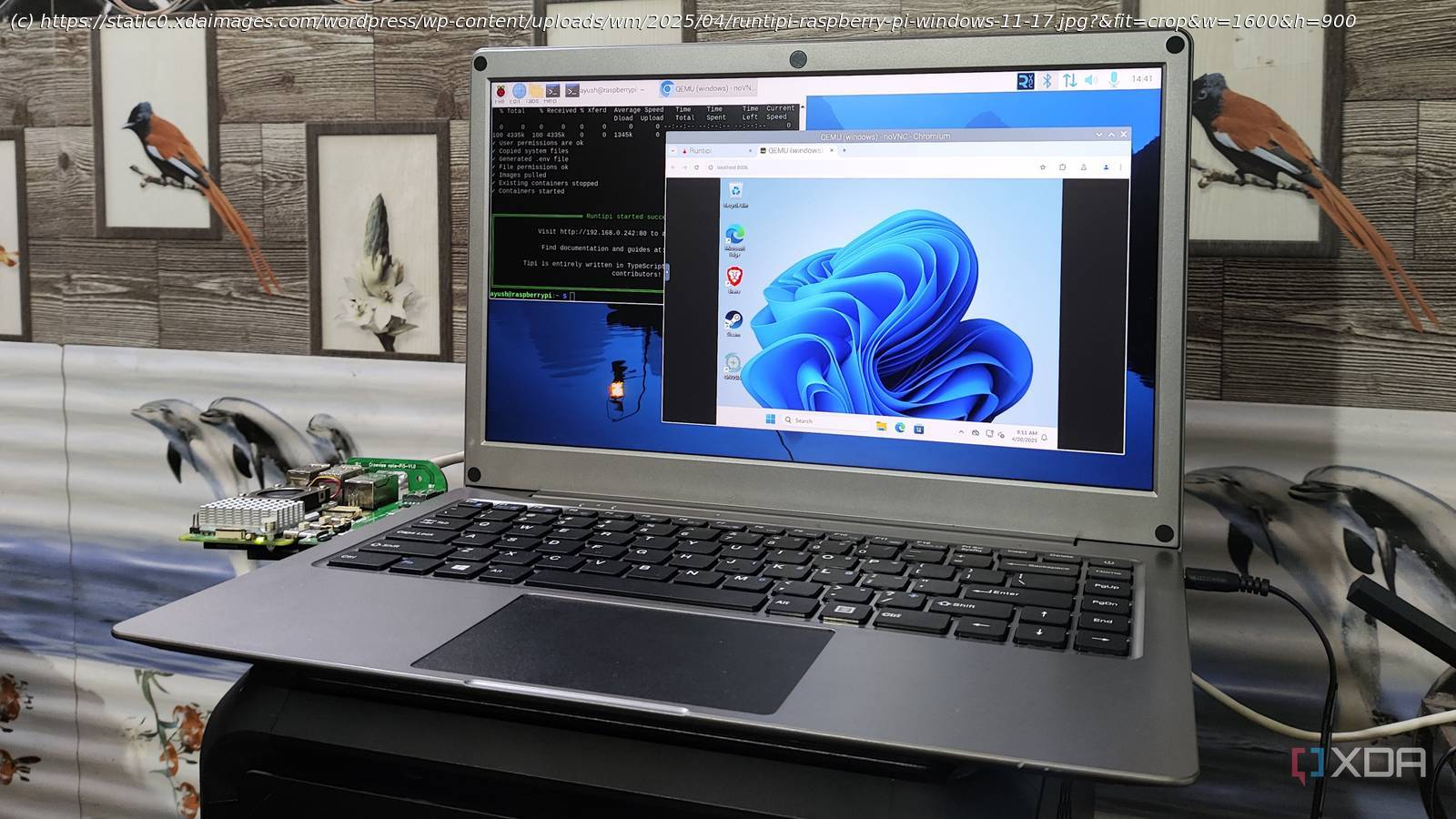
My next encounter with Windows 11 on the Raspberry Pi came out of nowhere when I was testing different apps on Runtipi, a containerization environment that you can install on top of an existing OS. Right as I was about to conclude my experiment, I noticed a container called Windows that could seemingly install Microsoft’s flagship OS on the Raspberry Pi… as a container (using some KVM voodoo), no less!
Despite the fact that (or perhaps because) I had low expectations, the containerized version of Windows 11 on the Raspberry Pi managed to surprise me, and I mean that in the best way possible. With merely 4GB of RAM and 4 cores assigned to the container, I deployed the Windows app. But unlike its WoR counterpart, the installation process was finished in less than an hour – all without forcing me to sit through multiple ad screens.
Likewise, running a couple of Brave tabs didn’t cause the OS to have a meltdown, and I could even edit photos via Darktable. Unfortunately, the low 800×600 resolution of the container was a massive problem, though I suppose I wouldn’t get decent performance even if I were to scale it up somehow. But considering that I ran everything on top of Raspberry Pi OS, I have to give credit to Runtipi’s container-based Windows 11 instance.
Botspot VM is surprisingly good at running Windows 11
It can handle lightweight, everyday apps
Botspot’s method for running Windows 11 is something I ran into rather recently, though it’s one that impressed me the most. Essentially, this project runs the Arm instance of Windows 11 inside a virtual machine and uses network and audio passthrough to avoid compatibility issues.
The best part? Botspot VM is available on the Pi-Apps store, and has an easy-to-follow installation procedure. Tweaking its config file is fairly simple, and while the setup time is longer than the Runtipi method, it wins on the performance front. Well, I initially tried to run it on a 4K monitor, where the VM wasn’t very responsive. But after switching to a 1080p display, the Windows 11 virtual machine ran surprisingly well. This time, there weren’t any weird aspect ratio or resolution problems. As long as I closed every other app on the underlying Raspberry Pi OS and inside the VM, I was even able to run Darktable, Notepad++, VS Code, and a handful of other apps without any issues.
Still, x86 systems are way better for running Windows 11
Although Botspot VM is my favorite method for tinkering with Windows 11 on the Raspberry Pi, I have to admit that it’s far from ideal for anything more demanding than everyday apps on it. Between Windows 11’s massively bloated nature and the Raspberry Pi’s underpowered hardware (yes, even on the latest model), it’s better to pair the SBC with light Linux distros.
But if your tasks require a Windows 11 machine, I’d recommend going for x86 systems instead. I consider the Radxa X4 the best SBC on the market at the moment, and its Intel N100 processor can handily run most Windows 11 apps with ease. Alternatively, you could go for mini-PCs with even better processors and extra memory if you want a small form-factor system that doesn’t cost as much as the average tower PC.