You have two basic choices when buying Windows 11: Home and Pro. Which is better for your needs? We break it all down.
Price: Not a Huge Difference, But Pro Costs More
To upgrade an existing Windows 10 PC that meets the hardware requirements for Windows 11, it doesn’t cost anything. That’s true for both Windows 11 Home and Windows 11 Pro. It’s a free upgrade, so price is not a consideration. For guidance on the process, see how to upgrade to Windows 11.
If you buy a new PC to get Windows 11, you won’t see a huge difference in price whether you choose Home or Pro. If you install Windows 11 on a home-built PC, you need to buy a license key. A Home license costs $139.99, and a Pro license costs $199.99, a difference of $60.
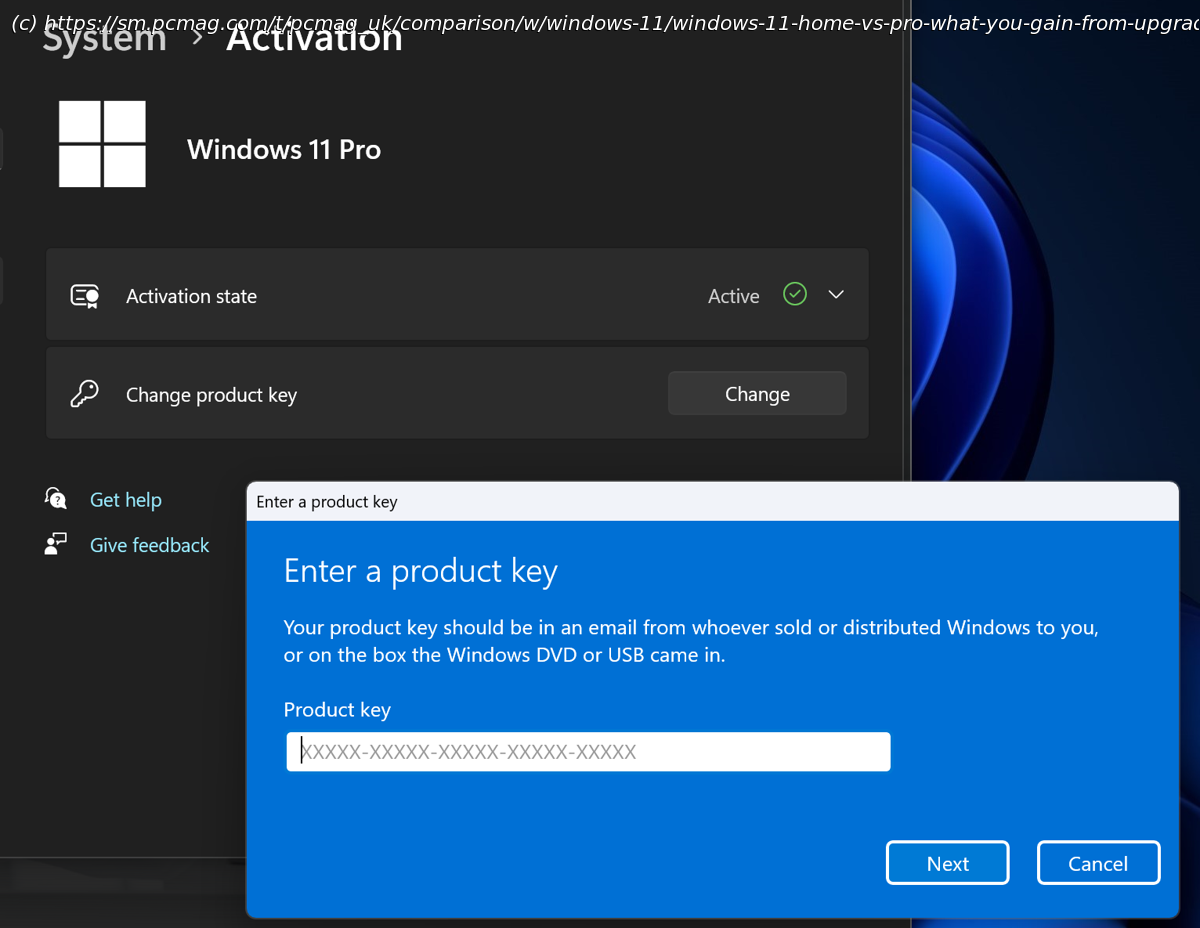
If you want to upgrade from Home to Pro, you can do so in the Microsoft Store app or buy a Pro license key and enter it in Settings > System > Activation, as shown below. The list price for a Home-to-Pro upgrade is $99.99.What Features Are Common to Both Windows 11 Home and Pro?
Both editions of Windows 11 come with all the headliner features:
Bluetooth quick pairing
Clipchamp video editor
Copilot generative AI for image generation, research, rewriting, and more
File Explorer with tabs
Focus sessions to shut out distractions temporarily when you want to get work done
Gaming enhancements like Auto HDR, DirectStorage, and improved Game Mode
Live Captions that work with any audio playing on the PC
Native passkey support for increased security
Powerful screenshot tool with video capture
Snap Layouts for arranging and organizing app windows
Updated utility apps, such as Media Player and Photos
Updated Voice Typing for hands-free text entry
Updated Windows Backup Tool
Widgets panel with news, weather, finance, and sports infoWhat Features Do You Get Only With Windows 11 Pro?
According to the Microsoft Store documentation, these features are exclusive to Windows 11 Pro:
Ability to join a domain and connect to your business or corporate network
Ability to join Azure Active Directory and connect to your school, business, or corporate network via the cloud
BitLocker, which helps protect data with enhanced encryption and security management
Private Catalog to access your company’s apps through a dedicated section in the Microsoft Store
Hyper-V for creating and running virtual machines
Remote Desktop controlSecurity Differences: Corporations Should Take Note
In terms of security, Windows 11 Home includes the standard Windows Security features, such as app control; device security, such as core isolation (protects the central Windows kernel) and TPM support; family options; firewall and network protection; and virus and threat protection.
Both Home and Pro include a device encryption option, but Pro’s BitLocker feature is more robust, allowing an administrator to remotely encrypt a PC, for example.
Windows 11 Pro also adds security features for organizations‘ IT departments that manage a workforce of PCs, called Microsoft Purview Information Protection and Microsoft Purview Data Loss Prevention. They let companies separate personal applications from work applications on the computer. They also scan the machines for unwanted content, restrict sharing, and automatically remove content that could pose a threat.Which Windows 11 Is Right for You?
The choice between Windows 11 Home and Windows 11 Pro is quite straightforward. For nearly every individual, Home is the way to go. It includes all the standard operating system features. You should consider the more expensive Windows 11 Pro only if you’re managing multiple computers and need BitLocker encryption, remote control, or virtualization features.