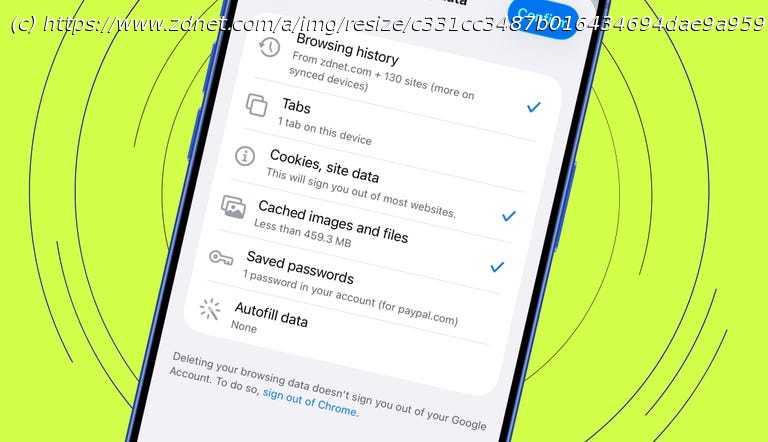
If your iPhone is feeling slow, follow this quick routine to boost its speed and free up space.
Clear your iPhone cache regularly to boost speed and free up space.
Safari, Chrome, and apps all store cache that can slow performance.
Restarting your iPhone helps clear hidden files and improve stability.
I’m guessing your iPhone has dozens of apps running and maybe a couple of browsers, each with way too many tabs open at all times. I know mine does. The thing is, all that activity causes cached data to build up over time.
Every time you use apps or browsers on your phone, they locally store bits of information such as images, scripts, and logins to make your iPhone perform faster. Websites load quicker, and apps feel snappier. At least that’s how it’s supposed to work in theory.
But like a junk drawer that starts out as a handy place to keep odds and ends — like a screwdriver, sticky notes, or a spare battery — so you can grab them and get things done fast, cached data eventually overflows and makes it impossible to work quickly.
Clearing your cache is like cleaning out that drawer. Suddenly everything works the way it should. Your phone feels lighter and runs smoother. So let’s walk through every way to clear the cache on an iPhone running iOS 26, and why you should make it a habit. How to clear cache on your iPhone
What you’ll need: An iPhone running iOS 26 and your Apple ID password or device passcode handy in case you’re prompted for it. 1. Clear Safari history and website data
If Safari is your main browser, you should know that every time you use it, each site you visit saves temporary files to your device to help pages load faster the next time you browse. Over time, though, those files can pile up, causing Safari to slow down or struggle with simple tasks.
Here’s how to fix that by clearing the cache.
You can clear Safari’s history and website data directly in the app, but you’ll find more options in Settings. Doing this regularly can fix glitches or speed up browsing without deleting your bookmarks or saved passwords.