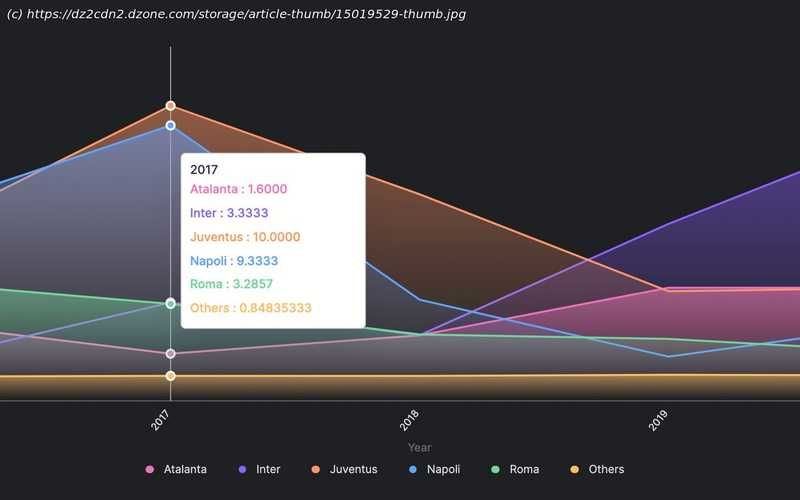
Use advanced MySQL operations such as dynamic SQL, user variables, and CTEs to analyze the data and create visualizations from web scraper data.
Join the DZone community and get the full member experience. To follow this tutorial, you should have the following: The libraries required for this tutorial are as follows: To install the libraries required for this tutorial, run the following commands below: Now that we have all the required libraries installed, let’s get to building our web scraper. The first step in any web scraping project is researching the web page you want to scrape and learn how it works. That is critical to finding where to get the data from the site. For this tutorial, we’ll be using http://understat.com. We can see on the home page that the site has data for six European leagues. However, we will be extracting data for just the top 5 leagues (teams excluding RFPL). We can also notice that data on the site starts from 2014/2015 to 2020/2021. Let’s create variables to handle only the data we require. The next step is to figure out where the data on the web page is stored. To do so, open Developer Tools in Chrome, navigate to the Network tab, locate the data file (in this example,2018), and select the « Response » tab. After executing requests, this is what we’ll get. After looking through the web page’s content, we discovered that the data is saved beneath the « script » element in the teamsData variable and is JSON encoded. As a result, we’ll need to track down this tag, extract JSON from it, and convert it to a Python-readable data structure. After running the python code above, you should get a bunch of data that we’ve cleaned up. When we start looking at the data, we realize it’s a dictionary of dictionaries with three keys: id, title, and history. Ids are also used as keys in the dictionary’s initial layer. Therefore, we can deduce that history has information on every match a team has played in its own league (League Cup or Champions League games are not included). After reviewing the first layer dictionary, we can begin to compile a list of team names. We see that column names frequently appear; therefore, we put them in a separate list. Also, look at how the sample values appear. Now let’s get data for all teams. Uncomment the print statement in the code below to print the data to your console. After you have completed this code, we will have a dictionary of DataFrames with the key being the team’s name and the value being the DataFrame containing all of the team’s games. When we look at the DataFrame content, we can see that metrics like PPDA and OPPDA (ppda and oppda allowed) are represented as total sums of attacking/defensive actions. However, they are shown as coefficients in the original table. Let’s clean that up. We now have all of our numbers, but for every game. The totals for the team are what we require. Let’s look at the columns we need to add up. To do so, we returned to the original table on the website and discovered that all measures should be added together, with only PPDA and OPPDA remaining as means in the end.