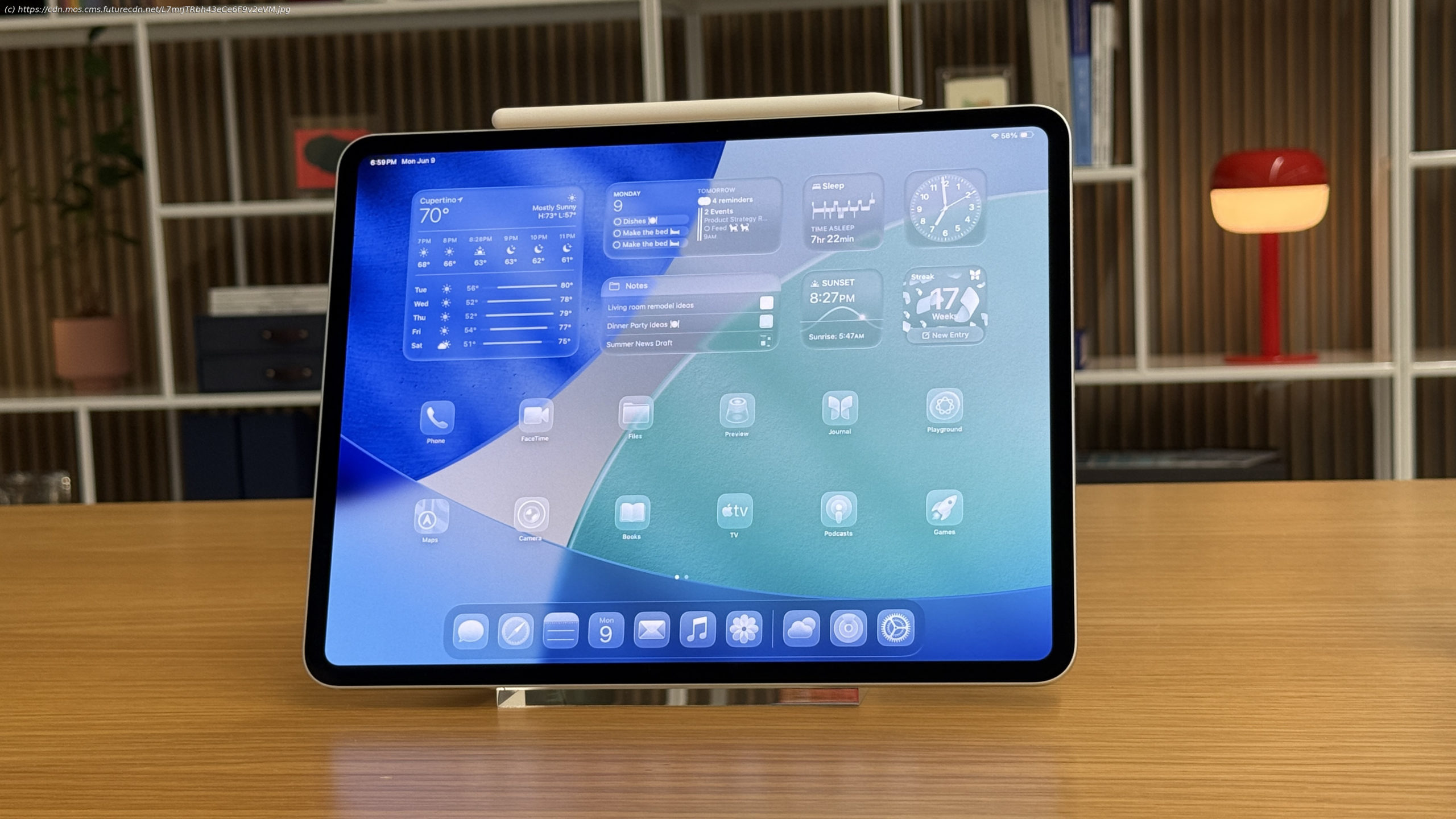
It’s the upgrade iPad users have been waiting for
Well, for the iPad faithful, Apple’s WWDC 2025 keynote was the day that faith was rewarded. I, like countless others, have been waiting for a major upgrade for iPadOS, and the Cupertino-based tech giant delivered.
Yes, iPadOS 26 brings with it Liquid Glass, but more importantly for all iPads that support it, you’ll get actual windowed multitasking, the ability to drop folders in the dock, a menu bar up-top, one of the most addicting gestures I’ve used, and the ability for tasks to run in the background.
Easily, it was the standout moment from the keynote, and I got to go hands-on briefly with iPadOS 26 running on a 13-inch iPad Pro with M4 attached to a Magic Keyboard with an Apple Pencil Pro.
Now, let’s address the elephant in the room – allowing those landmark features I listed out above makes the iPad seem like a Mac, but don’t call this a Mac. Yes, Apple did take some features from the Mac rather than reinventing the entire concept – say, for the close, minimize, or expand buttons in the top left or the menu bar – but this is all well thought out for the iPad, and takes advantage of one of the best parts of an iPad.
Multitouch.
With the iPad’s approach, it’s sort of a choose-your-own-adventure, while on the Mac, it’s keyboard and trackpad. I used it and saw a demo of fingers controlling the windows, as well as using the Apple Pencil to move items around and even the cursor. It’s all about control, in that however you see it and want to use it, you can do so to get more out of your iPad. Let’s talk about why.
Let’s start with the most exciting part – from any app, you can pull from the bottom corner – it’s set with an effect, a slightly darker edge in the bottom right – to easily resize the window by pulling it back and forth. So from full screen, you just pull it towards the other side to make it smaller, by width or height, and then you can grab the top of the window to place it where you like.
Using the dock, you can then drag and drop another app up or do a swipe up for the peek mode to access your home screen and place any app in this layout.