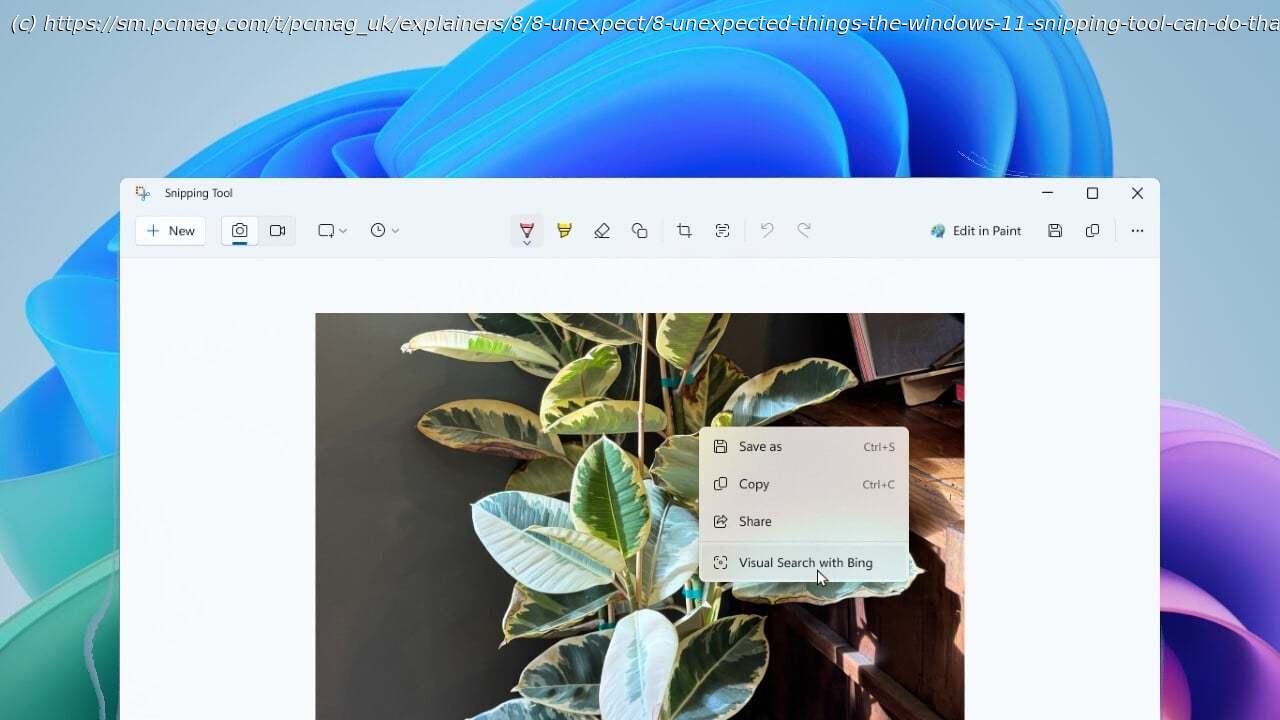
Did you know that you can copy color values and extract text directly from the screenshots you capture with the Windows Snipping Tool? Here are all the most surprising and useful capabilities it offers.
The Snipping Tool is one of the primary ways to take a screenshot in Windows 11, but it goes far beyond simple screen captures. For example, if you want to record your screen activity, the app helps you trim your videos into shorter clips and even create animated GIFs. It can also identify text in an image via optical character recognition (OCR), allowing you to copy and paste it elsewhere. Here are eight ways to use the Snipping Tool beyond just taking screenshots.1. Edit Your Video
After recording video of the activity on your screen, you’ll be given the option to edit the footage. Your recording pops up in a window where you can watch the clip, save, copy, or share the video, and even edit it. Click the Trim button to view the video on a timeline and begin the editing process. Move the first marker to the right to cut out as much of the start as you want. Move the second marker to the left to cut out as much of the ending as you want. To save your changes, click Apply.
To perform more extensive editing on your video, click Edit in Clipchamp. In Clipchamp, Microsoft’s professional video editing software, you can trim, clip, and splice your video clips. You’re able to add filters and styles, integrate audio tracks, and apply special templates. You can even export your video as an MP4 file with a resolution as high as 1080p.2. Save Your Video as an Animated GIF
Want to create an animated GIF to share on text or social media? At the video player window, click Create GIF to convert the first 30 seconds of your video into that format. Next, you’re prompted to choose whether to save it as a lower-quality file that’s small and easy to share or a higher-quality version that’s larger but clearer. Click the Export button to save it to your Videos folder, or choose a different destination. You can then play the file in the Photos app to see how it looks.3. Set a Timer for a Screenshot
By default, the Snipping Tool takes a screenshot as soon as you select the area you want to capture. But maybe you want to delay it to set up the screen a certain way.