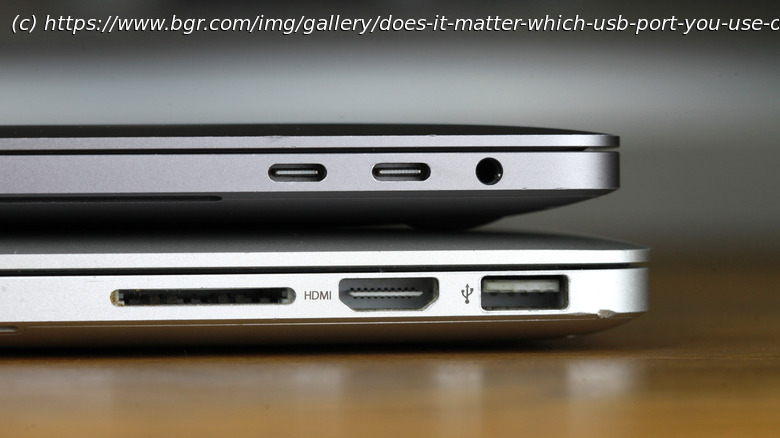
The MacBook USB port you use only matters if your devices support the Thunderbolt USB‑C protocol. Otherwise, the ports are pretty much the same.
With so many devices now supporting only USB-C, choosing the right USB port to connect your devices can be much simpler. But the confusion doesn’t stop just because they’re all USB-C. Some ports are still better than others, and Apple touts most of its ports as Thunderbolt instead of just plain USB-C. So, how are you supposed to know which one to use?
While it might be easy to think that all USB-C ports are equal, that isn’t the case. Some of them are labeled as Thunderbolt but are still USB-C connectors; they just use a different protocol than standard USB-C ports. This means they have extra features like faster transfer speeds and the ability to transfer video to a monitor. So, if you’re planning to connect an external monitor, then turning to a Thunderbolt connector is the only way, as regular USB-C ports can only send video signals with DisplayPort Alt Mode, a feature that modern MacBooks only have on Thunderbolt ports. The differences between the two protocols are part of why it’s become even more important than ever to know what you’re looking for when choosing between a Thunderbolt and a USB-C monitor, and even what it means when USB ports have different colors.