If you have an aging webcam lying around, it can be repurposed in a variety of ways, including using it for document scanning, live-streaming, and more.
We may receive a commission on purchases made from links.
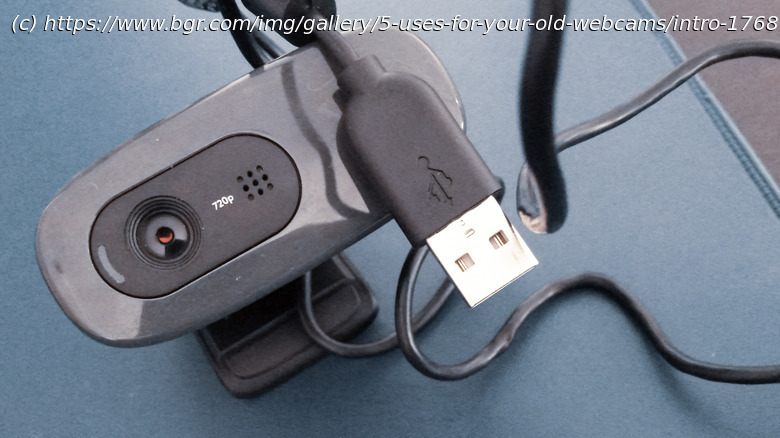
A webcam is one of the most essential USB gadgets there is. While some PC displays and laptops have webcams built right into them, not all of them do. There are still plenty of standalone webcams on the market, though unfortunately, like any tech peripheral, webcams do gradually age out or are rendered obsolete by newer models. If your old webcam still works, though, don’t just consign them to the eternal junk drawer, put them to use as a security camera, document scanner, or as part of a streaming rig.
If you have an old webcam that has well and truly kicked the bucket, there’s not much you can do beyond bringing it to a recycling plant and sending it off to its final rest. If it’s still in fairly good working order, though, you could potentially use that webcam for all kinds of handy purposes around the house, both practical and just for fun. Some of these ideas may require a Raspberry Pi or particular software, but if you’ve got the creative drive, you can reuse and optimize those webcams instead of just creating more e-waste.Use it for document scanning
If you think about it in the broadest possible terms, a scanner is just a long camera being placed right up against your various documents. If all you need are some quick scans of your various documents and files, and don’t need them to be in color or particularly high quality, you don’t really need to invest in all the features of a full scanner when an old webcam can effectively do the same job.
Using an old webcam as a document scanner is one of the simplest things you can do with it, as it doesn’t require any special hardware or software. If you’re running Windows 11 on your PC or laptop, the default Camera app has a scanner feature. Just plug the old webcam in, select the Document button on the right-hand side of the app, and line up the document you want to scan in the blue box that appears. Click Take Document, and the ensuing capture will be added to the camera roll at the bottom right of the window. You can click on it to open it in a separate window and look it over, as well as zoom in, crop, rotate, and so on.