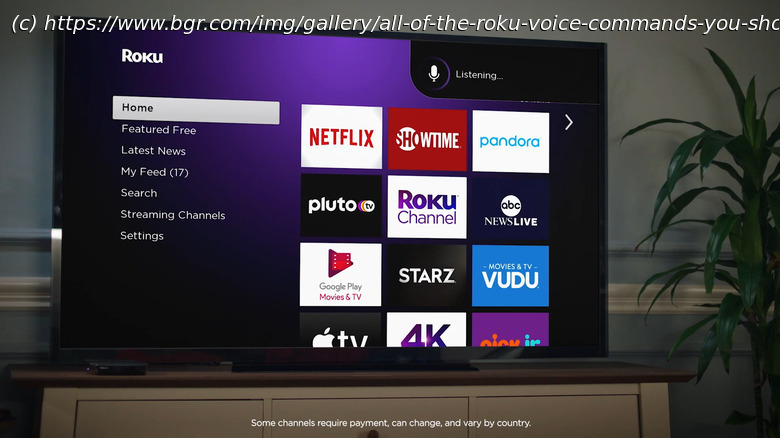
Of dozens of options, here are a couple particularly useful Roku voice commands you might want to try.
Roku voice commands are especially handy when using your streaming device. After all, sometimes it takes ages to type out the title of your favorite series or click through dozens of menus to activate captions. To initiate a voice command on your Roku, you can use either your remote or phone.
On your remote, long-press on the button with a mic or magnifying glass, say your request aloud, and then let go. If you have a Roku Voice Remote Pro (2nd edition), you can also enable hands-free voice with the slider on the left side of the remote. Turn it to green, start your command with « Hey Roku », and tell Roku what you want it to do. Meanwhile, to control your Roku TV with an Android phone, launch the Roku app, go to the Remote tab, and hit the mic icon.
But more than knowing how to issue a voice command, it helps to know exactly what kinds of commands you can use on your Roku. Out of the dozens of options out there, here are a couple of the more useful Roku voice commands you should try.Standard Roku voice commands for content search and media control
Some of the standard Roku voice commands you’ll likely end up using the most are for searching and playing video and audio content. To look for a TV show or movie on Roku, start with the keywords « find », « search for », or « show me. » Then, you can follow up with either the title, actor, or genre. For instance, you can say, « Find me scary TV shows », or « Search for Morgan Freeman movies.