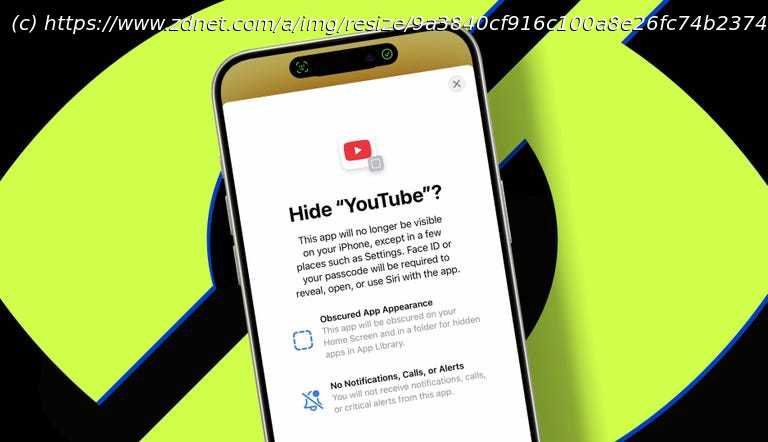
Every parent should enable this before handing over their phone.
Lock iPhone apps with Face ID to prevent others from accessing.
You can also hide apps in a secret folder to keep them out of sight.
Or you can remove apps from your home screen without hiding them.
I try not to let my young daughter have too much screen time, but she loves watching YouTube Kids. Unfortunately, she recently learned about regular YouTube. My mother-in-law let her use it on her iPhone (yes, I’ve told her not to do that anymore), and ever since, my daughter has been on a mission to grab a phone and head straight for YouTube. Parenting is fun.
Thankfully, Apple added some handy iOS features that let you lock apps behind Face ID and even hide them completely in a secret folder. I just set this up on my iPhone for the first time. I’ve also shown my mother-in-law — as well as my husband and a few other parents who had no idea these features existed — how to use the trick.
Now my daughter can still grab a phone to watch her Ms. Rachel videos on YouTube Kids, without wandering into the wilds of regular YouTube. How to lock and hide apps on iPhone
What you’ll need: You need an iPhone running iOS 18 (or newer) and an app to lock and hide, such as YouTube. You can also do this on an iPad running iPadOS 18 (or newer) — the process is exactly the same. 1: Lock an app with Face ID
When you lock an app, you will no longer be able to open it unless you authenticate with Face ID, Touch ID, or your passcode. It’s great if you want to keep kids or anyone else really from poking into specific apps.
How to lock an app on iPhone
Now, any time someone taps that app, they’ll have to get through Face ID first. However, not every app can be locked. Some system apps like Camera, Clock, Contacts, Find My, Maps, and Settings can’t be locked. But most others — including Messages, Podcasts, Music, the App Store, and third-party apps like Instagram — can be.2. Hide an app in a secret folder
If locking isn’t enough — for example, if just seeing an app icon could be a problem — you can hide apps.
When you hide an app, it disappears from your home screen and gets stored in a Hidden folder at the bottom of your App Library. To find it, someone would have to swipe right on the home screen to open the App Library, scroll all the way down, notice the Hidden folder, and then unlock it with Face ID to open it.
Unlikely, right?
How to put apps in a hidden folder on iPhone:
You can hide most apps you download from the App Store, but some built-in Apple apps like Camera and Messages can’t be hidden. Once an app is removed from your home screen, it won’t appear in searches or Siri suggestions. To see it again, you’ll need to go to your App Library, open the Hidden folder, and authenticate.3. Optional: Remove app from home screen instead
If you want to lock an app but don’t need to hide it — or if you simply want to remove it from your home screen — you can do that too. The app isn’t hidden or deleted; it just gets tucked away in your App Library and stays fully visible. If it’s locked, you’ll still need Face ID to open it from the App Library.
How to remove an app from your iPhone home screen:
The app icon should be removed from your home screen but still accessible in your App Library (swipe from right on the home screen), where you can still search for it or scroll to find it, even if locked.
You can lock most apps, including Messages and third-party apps from the App Store.
However, Apple doesn’t allow you to lock or hide certain core system apps like Settings and Find My. It’s worth pressing and holding on an app for a moment to see what quick action options appear.
No. Once hidden, the app won’t send notifications until you open it again. That also means notifications from a hidden app won’t appear in previews or in the Notification Center on your lock screen.
Hidden apps live in a special folder in your App Library. Swipe from right to open the App Library, scroll all the way to the bottom, tap the folder labeled Hidden, and authenticate with Face ID, Touch ID, or your passcode. You’ll then see the hidden apps inside.
If you change your mind, it’s easy to bring an app back to the surface.
Go to the App Library, find the app (including if it’s in the Hidden folder), touch and hold the app, and tap Don’t Require Face ID (or Touch ID or Passcode). Authenticate one last time, and the app will be unhidden and visible in your App Library again.
If you want it back on your home screen, just touch and hold it, then tap Add to Home Screen.
Yes. The steps are exactly the same.
Beyond keeping kids out of apps like YouTube, you can lock or hide apps to help manage your own usage habits.
Other reasons include reducing distractions, decluttering your home screen and App Library, and simply wanting to better protect your privacy by preventing others from seeing your data.