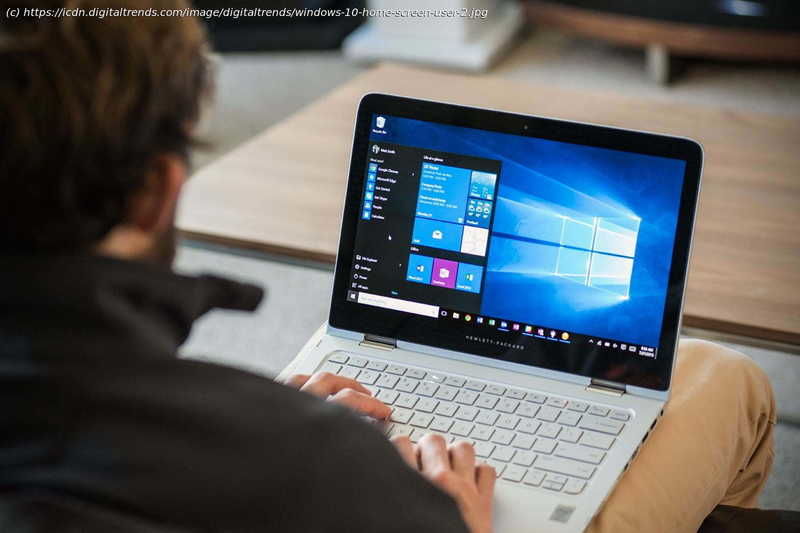
Microsoft offers free ISO files of the Windows 10 operating system to anyone who wants them. This is useful if you’re thinking of upgrading from Windows 7.
Whether you currently use Windows 10 and want the latest version or you want to switch from another operating system, it’s possible to do so — but there may be some confusing steps. Downloading and installing the Windows 10 ISO file allows you to install the latest Microsoft OS. If you don’t know how to download and install a Windows 10 ISO file, we cover the basics. Keep reading to learn what you need to do. To get started, head to the Windows 10 download page. Under the header that says Create Windows 10 Installation Media, select the Download Tool Now button. Next, a dialog box will ask you if you want to save a program called MediaCreationTool21H1.exe. Click Save File. This will download the file to your computer. Once downloaded, this ISO download tool makes it easy to turn any USB key into a bootable Windows 10 installer and allows you to download the Windows 10 ISO file for future use. When the tool downloads, run it. A terms-of-use screen will pop up, and you’ll need to then click Accept. You must then confirm whether you want to upgrade your current PC or create installation media for another PC. Select Create Installation Media (USB Flash Drive, DVD, or ISO File) For Another PC, as shown above, and then click Next. Select the language, architecture, and edition of Windows you prefer. It’s usually best to check the box for Use the Recommended Options for This PC, but you can also customize it and choose a different a language or architecture. Choosing a different Windows edition, however, such as Windows 10 Pro or Home, may not be available to you. Click Next when you’re ready. On the next screen, if you’re looking to install Windows on your PC, select the ISO File option.