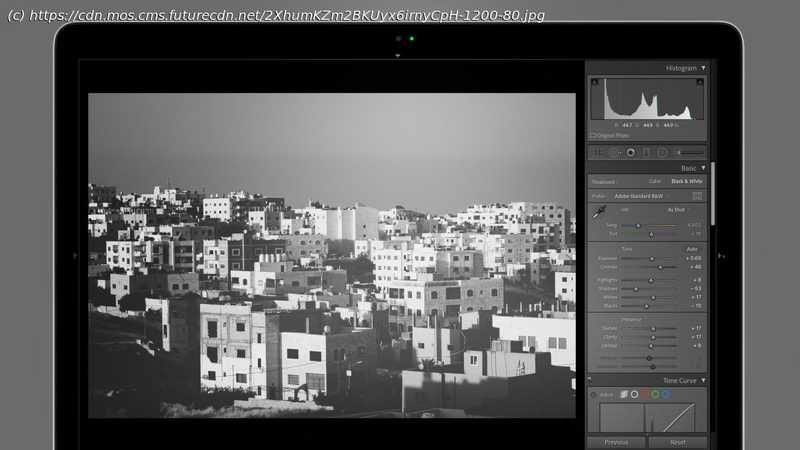
Looking for the best free Lightroom presets? We’ve taken dozens for a spin and picked out our favorites for portraits, weddings, landscapes and more.
Looking for some photo-editing inspiration? Using the best free Lightroom presets is a fine way to test-drive some new styles and looks without shelling out for paid presets. And our guide is here to cherry-pick the best ones for you take for a spin. Whether you’re an amateur or a pro, editing photos is a necessary evil. Getting a photo from rough-and-ready to print-perfect takes time, expertise and experience, especially when it comes to aping a particular style or working to get all your images stylistically consistent. Thank goodness, then, for Lightroom and its marvelous system of presets. The theory is simple: a Lightroom preset is simply a bundled-up set of edits, taken from the program’s Develop module. These can be a single edit, such as a levels adjustment, or they can be more holistic – a curves change, a white balance tweak, levels, or a color-grading fix. Presets can do anything from subtly adjust images to making swinging changes. Making a preset in Lightroom is pretty easy: make the changes you want to a sample image, then in Lightroom Classic, go to Develop > New Preset, or press Shift-CMD-N. Choose which elements of your edit you want to include, pick a snappy name and hit OK. In Lightroom – not the full-fat Classic version – press Shift-P to open the presets panel, click the three little dots at the top of the new panel, and choose Create Preset. All well and good, but it’s a creative world out there, and there are Lightroom magicians all over the place making presets that will be useful whatever genre of photography you’re in. Portrait, black and white, you name it – there’s probably a free Lightroom preset for it, and it’s possibly free. Here, we’ll reveal some of our favorites, as well as explain how to install them. In Lightroom Classic Installing presets in Lightroom Classic is easier than falling off a log. Follow the link provided – most preset houses will want an email address in exchange for a free preset – and download what will normally be a ZIP file containing an XMP file and an.lrtemplate file. Unzip the files and open Lightroom Classic. If you have an XMP file, you can click File > Import Develop Profiles and Presets; just navigate to the folder your new preset lives and double-click it. If you have an.lrtemplate file, life is even easier – just drag the.lrtemplate file onto your Lightroom Classic window and a prompt will appear asking if you want to install it. Click ‘Install’, obviously. Using your preset is easy, too. Choose any image, then in the right-hand panel, under Quick Develop, choose the drop-down list next to Saved Preset. Your new preset will be in there. Quick tip for those looking for visual consistency: when you’re in grid view you can choose multiple images at once and apply the same preset to them all with a single click. In Lightroom Despite its positioning as Lightroom Classic’s more consumer-friendly partner, Lightroom actually makes installing a preset slightly more complicated, as the drag-and-drop trick above doesn’t work. Instead, go to File > Import Profiles and Presets, then navigate to the folder you’ve downloaded your preset to. Just like Lightroom Classic, both XMP and.lrtemplate files will work interchangeably, so it doesn’t matter which format your preset has been delivered in. Once it’s installed, using a preset on a single image is pretty straightforward – double-click your image, choose the Edit icon (the one with the sliders on it) at the top of the right-hand toolbar, then click the small ‘Presets’ button, where you’ll find your new preset.