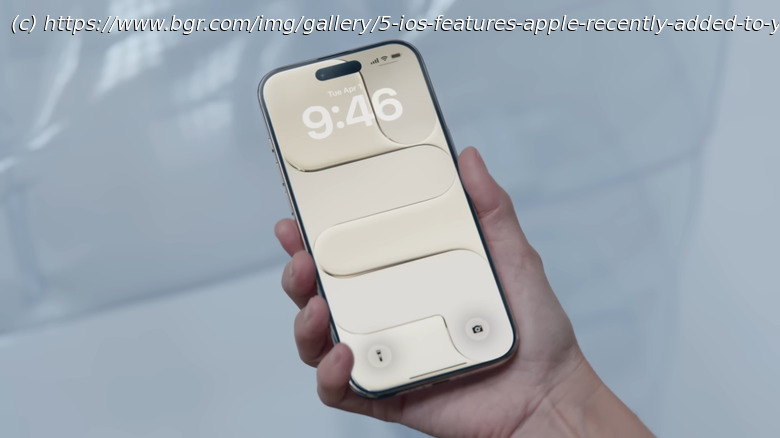
With the latest iOS 26 update and a few minor upgrades, iPhones now have a ton of new features ranging from AirDrop codes to reminders with alarms.
It has been a while since iOS 26 rolled out to iPhones, and by now, you might be pretty much familiar with the major iOS 26 features. You already know about the new Liquid Glass design and how it’s a stark contrast from the flat, colorful UI iPhones had for years. Maybe you’ve also tried setting up call screening, enabling text spam filtering, and using the live translation integrated into FaceTime and Messages. Many of these features are welcome changes that prove useful in your day-to-day life, but if you think the system upgrades stop there, think again.
Just like it does every year, Apple continues to improve its current operating system for a few months after launch. For iOS 26, these minor enhancements started with the iOS 26.1 and the update has seen a few iterations. But what exactly changed in the iPhones with these updates? Let’s walk you through five of the features Apple recently added to your iPhone that are worth exploring. AirDrop codes for unknown contacts
AirDrop comes in handy whenever another iPhone user wants to share a file or photo with you. But as convenient as it is, it isn’t particularly secure. When it’s set to Everyone for 10 Minutes, any random nearby iPhone — not just the device you’re expecting — can easily send you a transfer request. Sure, you do need to approve it first to start the transfer, but there’s practically no restriction on the part of the sender. All they have to do is select anyone available within range. This encourages some to send spam requests.
In response to this years-long issue, Apple added AirDrop codes to iOS 26.2. AirDrop codes are verification codes provided by the recipient during a transfer request. The sender has to type this code on their end; otherwise, the transfer won’t go through. You’ll only need AirDrop codes for devices that aren’t in your contacts, though. When receiving files and photos from friends and family, AirDrop works as usual. Here’s how you can generate and use AirDrop codes while making a transfer with an unknown sender:
Set your AirDrop to Everyone for 10 Minutes.
On the sender’s device, select the file or photo to be shared.
Tap the Share icon and select AirDrop.
Under People, tap the recipient’s iPhone.
Back on your device, wait for an AirDrop Code prompt to appear.
Hit Get AirDrop Code and ask the sender to type the generated code.
Almost immediately after, the transfer will start, and you should see the progress on your screen. Press View to view the file once the transfer successfully completes.Liquid Glass customizations
If there’s one feature that’s strongly dividing iPhone users into two camps, it’s Liquid Glass. Some like its novelty; others hate its dynamic looks. Fortunately, with iOS 26.