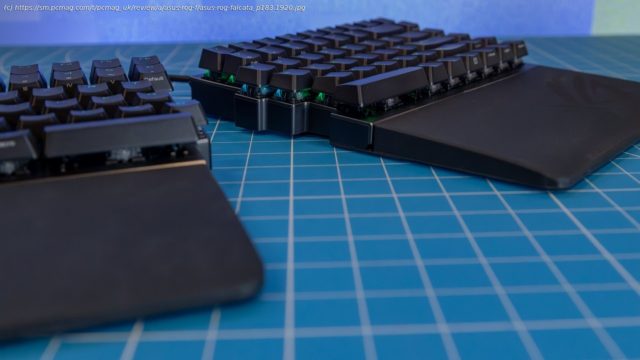
The Asus ROG Falcata is a supremely comfortable, extensively adjustable ergonomic split keyboard. It will please gamers in particular, as well as anyone seeking typing comfort and willing to invest in it.
When selecting an ergonomic keyboard, comfort should, of course, be your top priority. The Asus ROG Falcata ($419.99) is a wireless keyboard with a split-body design, comprising halves that can be used attached (like any ordinary keyboard) or spread out separately, depending on how your hands are feeling at the moment. This maximizes comfort by allowing your arms to spread wider than they could with a traditional keyboard. The asking price is steep, but the Falcata offers a lot in return (besides a comfortable typing experience), including variable key actuations and Rapid Trigger capabilities made possible by magnetic switches. The keyboard also comes with a set of accessories that further enhance the comfort level. All of this makes it an Editors’ Choice winner and our top pick for split ergonomic keyboards.Design: Split Down the Middle
The Asus ROG Falcata comes in a fairly large box in order to accommodate its large wrist rests. Without the rests and with the halves attached to each other, the board measures 1.5 by 12.9 by 5 inches (HWD). This makes the Falcata slightly smaller than the similarly designed Keychron Q11 we reviewed in 2023. It’s slightly lighter, too, at 2.13 pounds compared with the Q11’s 2.61 pounds.
Each half of the keyboard has its own battery, which Asus estimates can power the keyboard for up to 200 hours if the per-key adjustable RGB backlighting is turned off. In testing, our review unit’s battery lasted for several days (with the RGB lighting turned on) without needing a charge.
The stock switches are ROG HFX V2s, pre-lubed magnetic switches with a 49-gram actuation force. The switches feel nice and springy, and similar to other linear (i.e. non-tactile) switches we’ve tested in the past. If you’re not a fan of these switches, the keyboard is hot-swappable with other magnetic options. The Falcata only comes with the HFX V2s, and Asus offers no option to buy a bare frame, so tinkerers who like to customize every aspect of their boards may want to look elsewhere.
The left half of the Falcata has two USB-C ports, a volume roller, and a dial for activating the Rapid Trigger mode. With this mode enabled, the keyboard will recognize when a new key is pressed and immediately prioritize it over the last key input pressed. In gameplay, this means your character would move at the exact moment you hit a new key, instead of waiting for the last key press to finish registering.
One of the USB ports on the left half, labeled « Link », is for connecting the halves (you can’t connect them wirelessly to each other), while the other is for charging the Falcata or using a hardwired connection to your PC. The right half has a toggle for selecting among Bluetooth, wired, and the 2.4GHz wireless connection options. You can store the dongle for the 2.4GHz connection when you’re not using it in a cubby on the right half, in roughly the same spot as on the Asus ROG Azoth X.Unboxing and Setup: All Accessories Included
In the box, you’ll find the standard accoutrements typically included with a modern mechanical keyboard, among them a combo keycap/switch puller, a USB-C cable, and one extra keycap (a Control key, intended to replace the Microsoft Copilot-branded one). You’ll also find some additional accessories and tools to make the typing experience more comfortable.
These include wrist rests that attach to the keyboard halves using the included hexagonal screws. (The box contents also include an Allen key for tightening them.) The screws make for a rock-solid connection, but the attached rests also add a little over 3 inches of depth to each half’s profile, which means you gain extra comfort at the expense of desktop space. Ultimately, I opted to keep the wrist rests attached, as my desk isn’t too cluttered.
The wrist rests have an extra spot to attach some screw-on feet, which are also included. These feet (pairs of two at three different heights) are meant to create an angled curve similar to that found in many ergonomic keyboards, like the Logitech Ergo K860. But where the K860’s curve is locked in by the frame’s sculpt, these feet allow for different curvature levels to best fit the desired angle of your hands.
One minor nitpick: Asus offers no storage solution (other than the box, if you keep it) for the accessories if you decide not to use them. The eight screw-on feet are easily misplaced, and the wrist rest pads are large and cumbersome. You’ll have to create some dedicated desk storage space if you’re not planning to use the accessories.
Clutter aside, it’s very easy to get acclimated to the Falcata. I find the learning curve for most ergonomic keyboards to be quite challenging. But whether its halves are combined or split, the Falcata’s keys are easy to hit with muscle memory, which helped me adjust to the new layout quickly. A 30-second Monkeytype test resulted in 61 words per minute, which is slightly slower than my average but faster than I was able to type on any other ergonomic keyboard I’ve tested so far.Gear Link Control Utility: No Download Required
Asus ROG peripherals have been using a downloadable utility called Armoury Crate for a few years, but the latest devices are instead compatible with a new web-based utility called Gear Link.
While Gear Link is still in beta, we found no issues using it to customize the Falcata. We were even prompted to download a new firmware update automatically when we navigated to the Gear Link site. We weren’t able to adjust the keyboard in Armoury Crate.
Gear Link allows you to do everything you normally would through Armoury Crate. You can adjust the LED backlighting, remap keys, or assign custom actuation points. While Gear Link doesn’t do anything we haven’t seen before, it’s nice to know you can save storage space by using it instead of downloading an app.