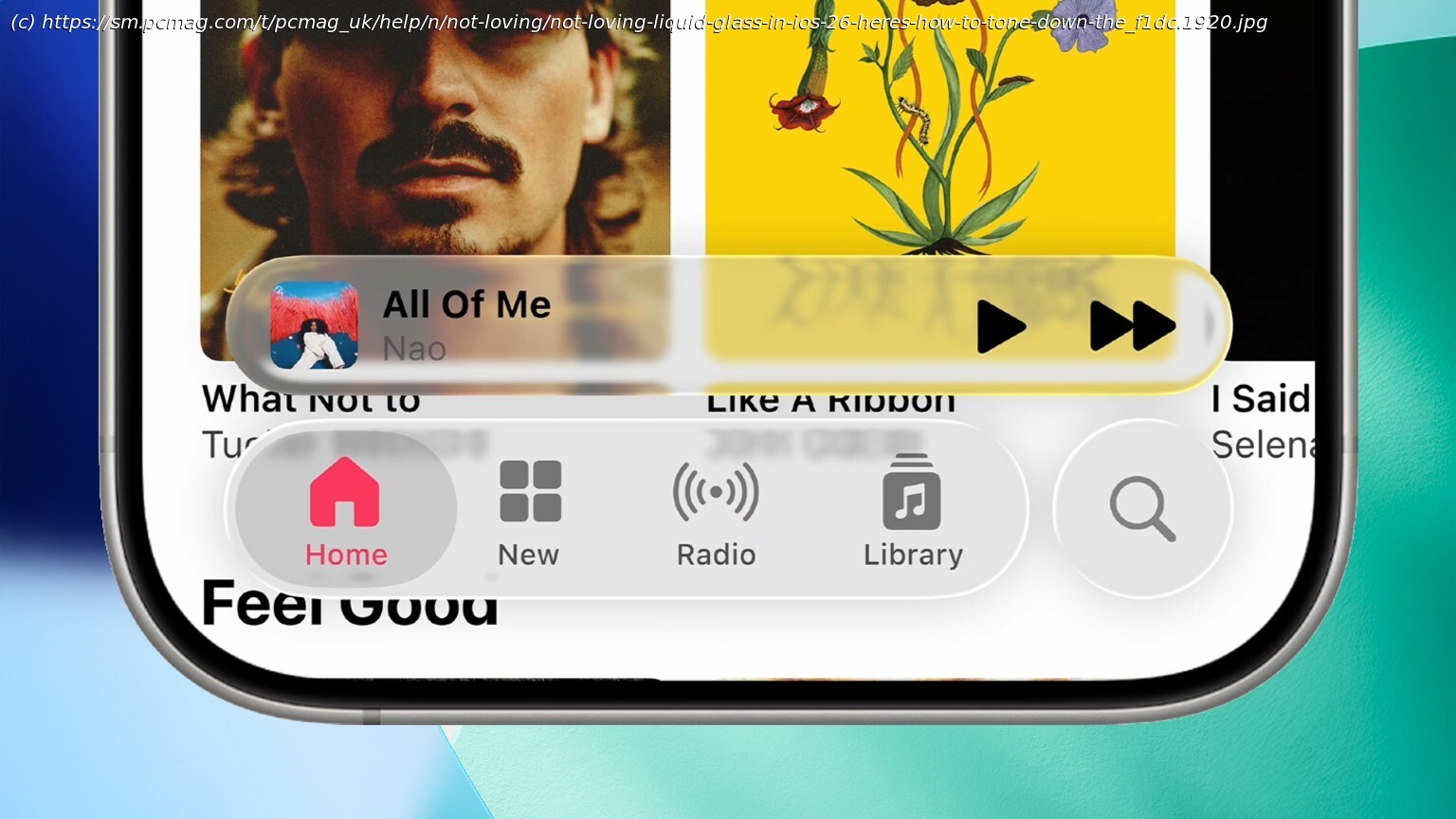
Liquid Glass is a very polarizing design choice for Apple; some even feel dizzy while looking at it. Unfortunately, it’s here to stay, but there are ways to make it less intrusive on your iPhone.
Starting in 2025, Apple has aligned its operating system releases by year. That means iOS 26, iPadOS 26, and watchOS 26 are the next versions of their respective software, alongside macOS Tahoe. And with these changes comes a new design, called Liquid Glass, which gives your icons, toolbars, menus, and other elements a translucent appearance as if you’re eyeing them through glass. The problem? Not everyone loves the new look.
I’ll confess that I’ve been on the fence about it. I like some aspects, such as the effect it has on icons and folders, but I don’t like how it sometimes obscures menu items and other controls. Some people have even complained that it makes them feel sick in dark mode.
If you’re not happy with the Liquid Glass aesthetic, I have bad news: You can’t turn it off. However, you can at least tone it down, essentially making your screen elements more opaque. Plus, there are other ways to adjust your screen to mitigate the effects of Liquid Glass. Reduce Transparency on Liquid Glass
To tone down the effect on an iPhone, I went to Settings > Accessibility > Display & Text Size and enabled Reduce Transparency. Now, when I look at the folders and menus on my home screen, I can see that the translucent look has been replaced by a more opaque one.
I can do the same on my iPad by opening Settings > Accessibility > Display & Text Size and turning on Reduce Transparency. I can then see that the transparency effect on the icons, folders, menus, and dock has been reduced to look more opaque and less transparent.